CPL Real Rewards Odoo 17 — Branch Maker Operating Manual
Document Control:
* Owner & Publisher: CPL Real Rewards Team
* Technical Maintenance: Systems Developer
* Target Audience: Store Cashiers (Makers), Store Supervisors, Regional Retail Management
* Applicable Environments: Staging (https://angry-mad-smile.cpl.com.pg) & Production (https://rewards.cpl.com.pg)
* Standard Version: v2.9.0
* Effective Date: October 2026
* Document Status: Production Certified & Verified
Document Control Log
| Revision | Date | Operational Author / Reviewer | Description of Operational Updates |
|---|---|---|---|
| v1.0 | 2026-08-15 | Real Rewards Operations | Initial launch of branch maker data entry and card lookup protocols. |
| v2.0 | 2026-09-20 | Real Rewards Operations | Added multi-token smart search and legacy Pronto card lookup. |
| v2.5 | 2026-10-02 | Real Rewards Operations | Formalized Maker-Checker segregation of duties pipeline and profile change requests. |
| v2.7 | 2026-10-04 | Real Rewards Operations | Deployed Quarantined Cards Queue (15,798 records, 194,520 pts), Blocked Cards governance policy, and decluttered 5-Tab Navigation Layout. |
| v2.8 | 2026-10-07 | Real Rewards Operations | Documented 10-Digit Pronto POS Sales Order sequence validation (up to 9,999,999,999), and standard operating procedure for handling customer returns, wrong item redemptions, and Admin point reversals (STG-TICK-040 / STG-TICK-041). |
| v2.9.0 | 2026-10-07 | Real Rewards Operations | Documented Member Service Request Amendment & Resubmission Lifecycle (STG-TICK-043), Odoo Discuss ChannelSelector colleague search (STG-TICK-042), and formalized Real-Time Daily Issue Flagging Protocol. |
1. Decluttered 5-Tab Top Navigation Layout
Branch Makers operate within a streamlined navigation bar organized into 5 logical operational tabs:
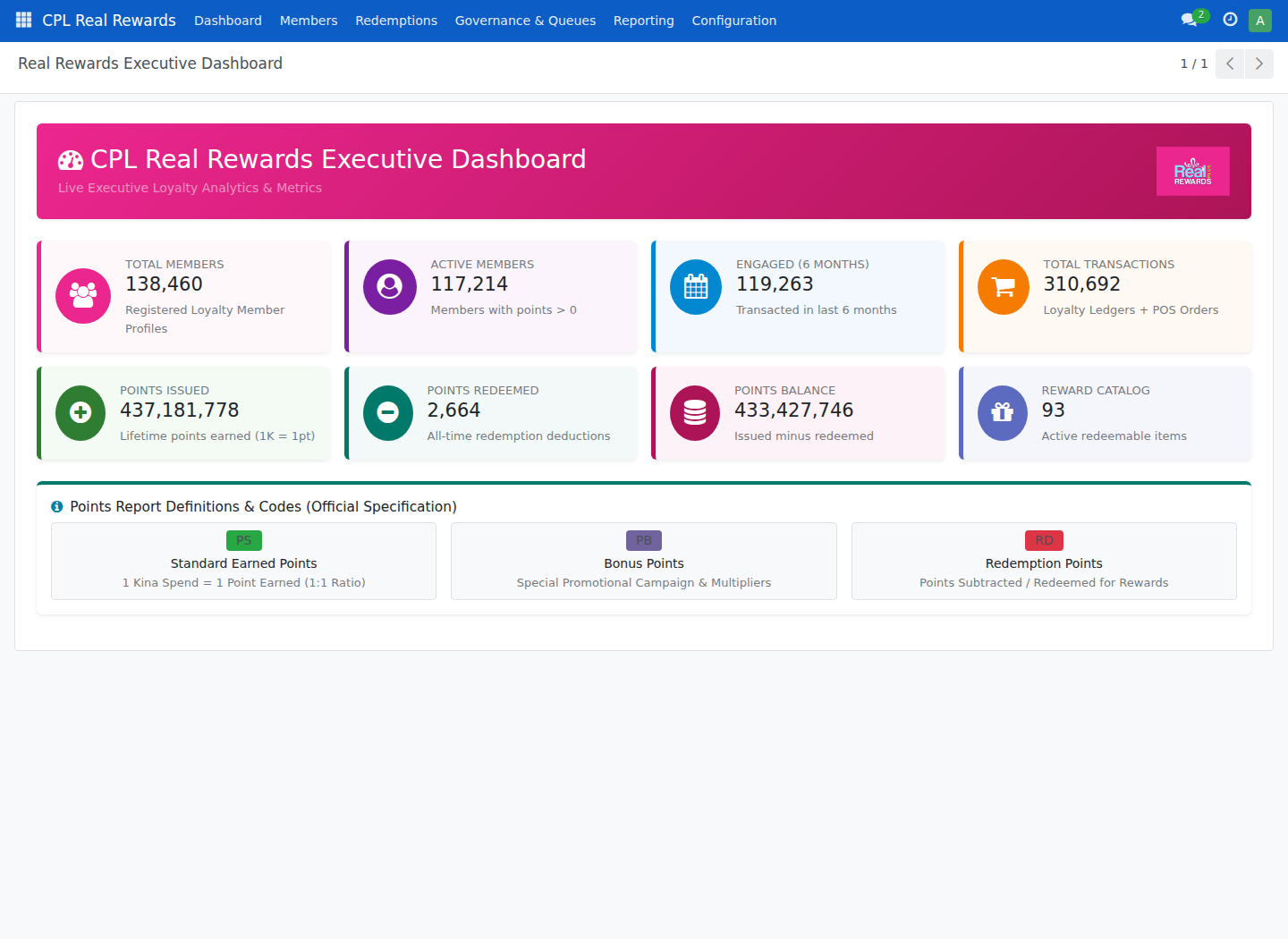 Figure 1: Decluttered 5-Tab Navigation Layout in Odoo 17 Enterprise.
- Dashboard: Live loyalty executive KPI analytics.
- Members: Real Rewards Members directory, Blocked Cards list, Member Add/Change Requests, Member Tags.
- Redemptions: Store Redemptions registry and Rewards Catalog Master.
- Governance & Queues: Quarantined Cards Queue, Blocked Cards (Unclaimed Queues restricted strictly to Head Office Checkers/Admins).
- Reporting: Daily Points Accounting and Loyalty Ledgers & POS Transactions.
2. Segregation of Duties & Maker Role Boundaries
Under CPL Group's strict internal audit governance policies:
1. Maker Authority: Branch Makers are authorized to create, draft, and submit profile updates, card replacements, and quarantined point claims.
2. Approval Prohibition: Makers cannot approve their own requests. All changes remain in Submitted status until an independent Head Office Checker reviews and approves them.
3. Prohibited Store Operations: In accordance with STG-TICK-031 and STG-TICK-032, Store Staff/Makers are strictly prohibited from performing Manual Points Adjustments and Claiming Unclaimed/Orphaned Accounts. These functions are reserved exclusively for Head Office Checkers and Administrators to eliminate store-level point inflation and unauthorized identity mergers.
4. Audit Trail: Every action logs the Maker's user ID, timestamp, and attached physical receipt evidence in Odoo's chatter.
3. Member Multi-Token Smart Search
When searching for customers at branch service desks:
* Search by Split Name: Type parts of names in any sequence (e.g. Margaret Frank, Valo Margaret).
* Search by Active Card: Enter the 9-digit Golden Record card number (e.g. CPLR000281749).
* Search by Legacy Pronto Card: Enter old 6-digit card numbers; Odoo automatically maps them to the active Golden Record.
* Search by Contact: Search by mobile phone number or email address.
4. Submitting Member Add / Change Requests
To update member demographic information or initiate card swaps:
Step-by-Step Submission:
- Navigate to Members > Member Add/Change Requests.
- Click New / Create.
- Select the target Real Rewards Member.
- Select the Request Type:
- Update Contact Information (Mobile, Email, Address)
- Card Replacement / Swap (Replace damaged or lost card)
- Claim Quarantined Card Transactions (Transfer quarantined points)
- Fill in the updated fields and upload scanned receipt proof or registration form.
- Click Submit for Approval.
- The record stage transitions to
Pendingand appears on the Head Office Checker review board.
4.1 Handling Form Corrections & Resubmissions (No Need to Re-Type New Forms!)
[!IMPORTANT] Operational Rule for Branch Makers (Waneen Mairi, Amy Oata, Store Staff): When a Checker sends back a request due to a clerical mistake (e.g., incorrect phone number, spelling error, missing ID photo), DO NOT CREATE A NEW FORM FROM SCRATCH! The system now supports a complete amendment and resubmission lifecycle.
How the Correction Workflow Works:
- Automated Notification:
- When a Checker clicks Send Back for Correction, you will immediately receive an Email Alert with the Checker's specific instructions and a direct link to the record.
- An in-Odoo Activity Clock Notification (
Correction Required) will appear in your top systray menu. - Form Automatically Unfreezes:
- The request status returns to
Draft. - All form inputs (Member Name, Phone, Date of Birth, Scanned Card, Customer Photo) immediately unlock and become editable.
- Correct the Flagged Information:
- Open the request directly from the email link or find it in Members > Member Service Requests (filtered by Draft).
- Review the Checker's instructions in the Chatter audit trail or header notice.
- Correct the details (e.g., amend the phone number to an 8-digit number, update the name, or re-upload a clear photo).
- Resubmit with One Click:
- Click the green
Submit for Approvalbutton. - The status immediately moves back to
Pending, your pending correction activity is marked as completed, and the Checker is alerted that the corrected form is ready for final approval.
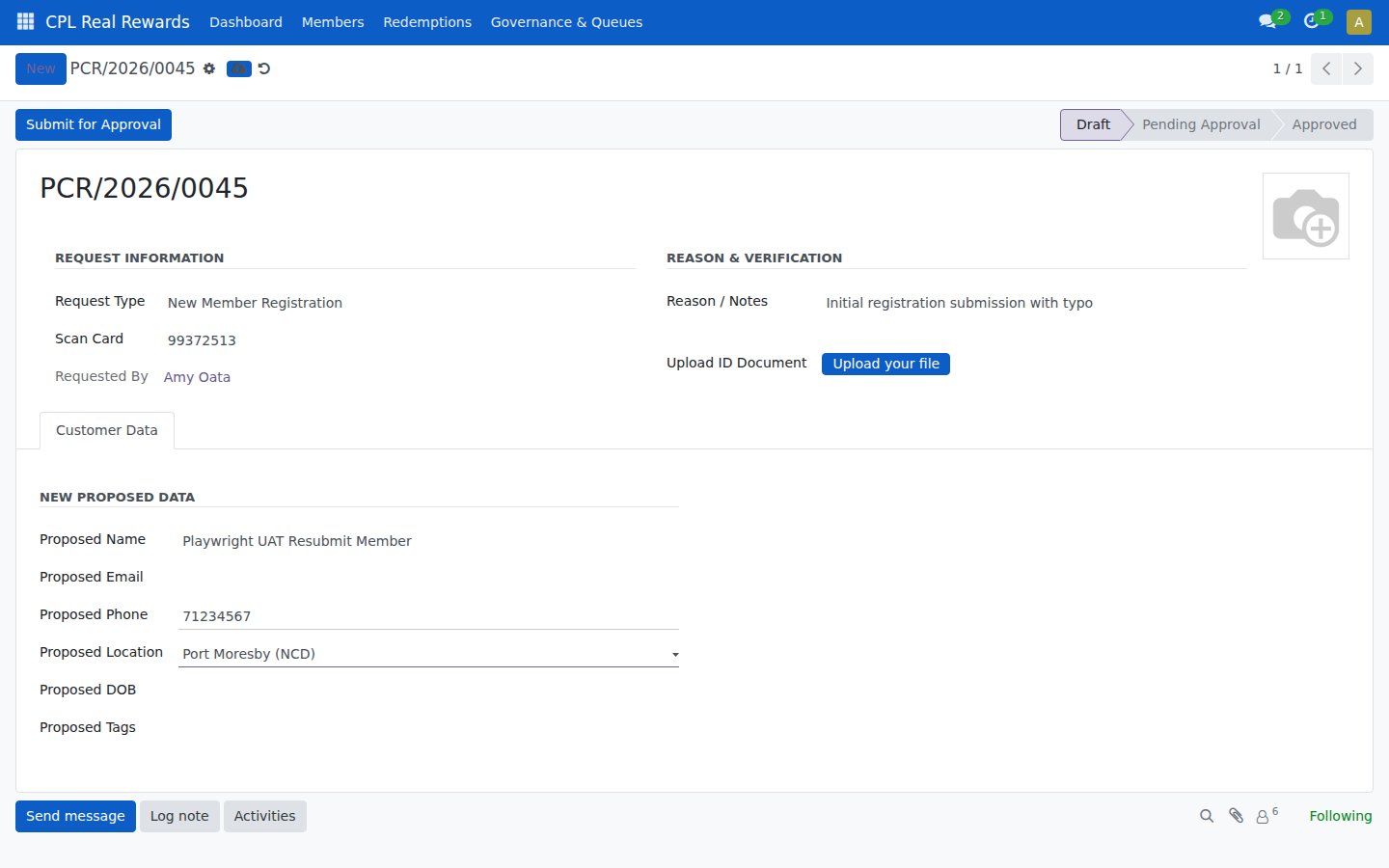 Figure 2: Store Maker amending a sent-back request in Draft state and clicking Submit for Approval.
5. Quarantined Cards Queue & Claim Guidelines
When a customer presents physical receipts matching an unregistered or offline card:
- Navigate to Governance & Queues > Quarantined Cards Queue.
- Search for the physical card number or POS order reference.
- Verify that the receipt's date, store code, and amount match the quarantined record.
- Click Push to Member (Claim) in the header.
- In the wizard:
- Select the customer's verified Golden Record Profile.
- Check Claim ALL transactions for this card if the customer owns all scans from that card.
- Enter the store receipt number, POS till reference, and date in Claim Reason / Receipt Proof.
- Click Confirm Claim & Transfer Points.
- A change request is automatically logged for Checker review. Once approved, points credit to the member's balance with full ledger lineage.
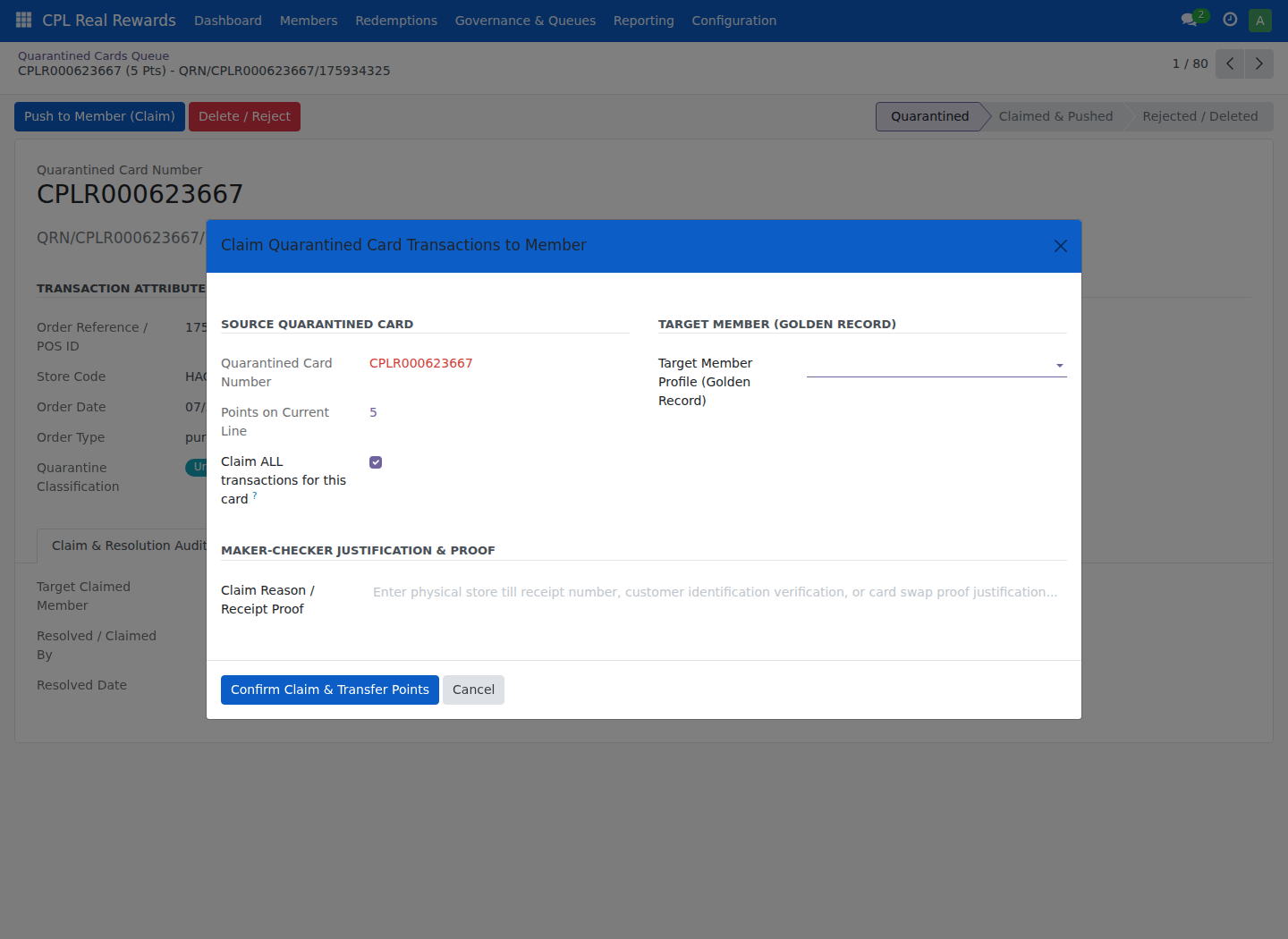 Figure 2: Claim wizard connecting unassigned transactions to verified Golden Records.
6. Blocked Cards Direct Inspection
Makers can view all currently compromised or suspended accounts in a dedicated filtered list:
- Navigate to Members > Blocked Cards or Governance & Queues > Blocked Cards.
- The list displays all 5 accounts with
Available Points = 0andBlockedtoggle enabled. - If a customer on this list visits the service desk, advise them that their account is under review and submit a request to Head Office for identity clearance.
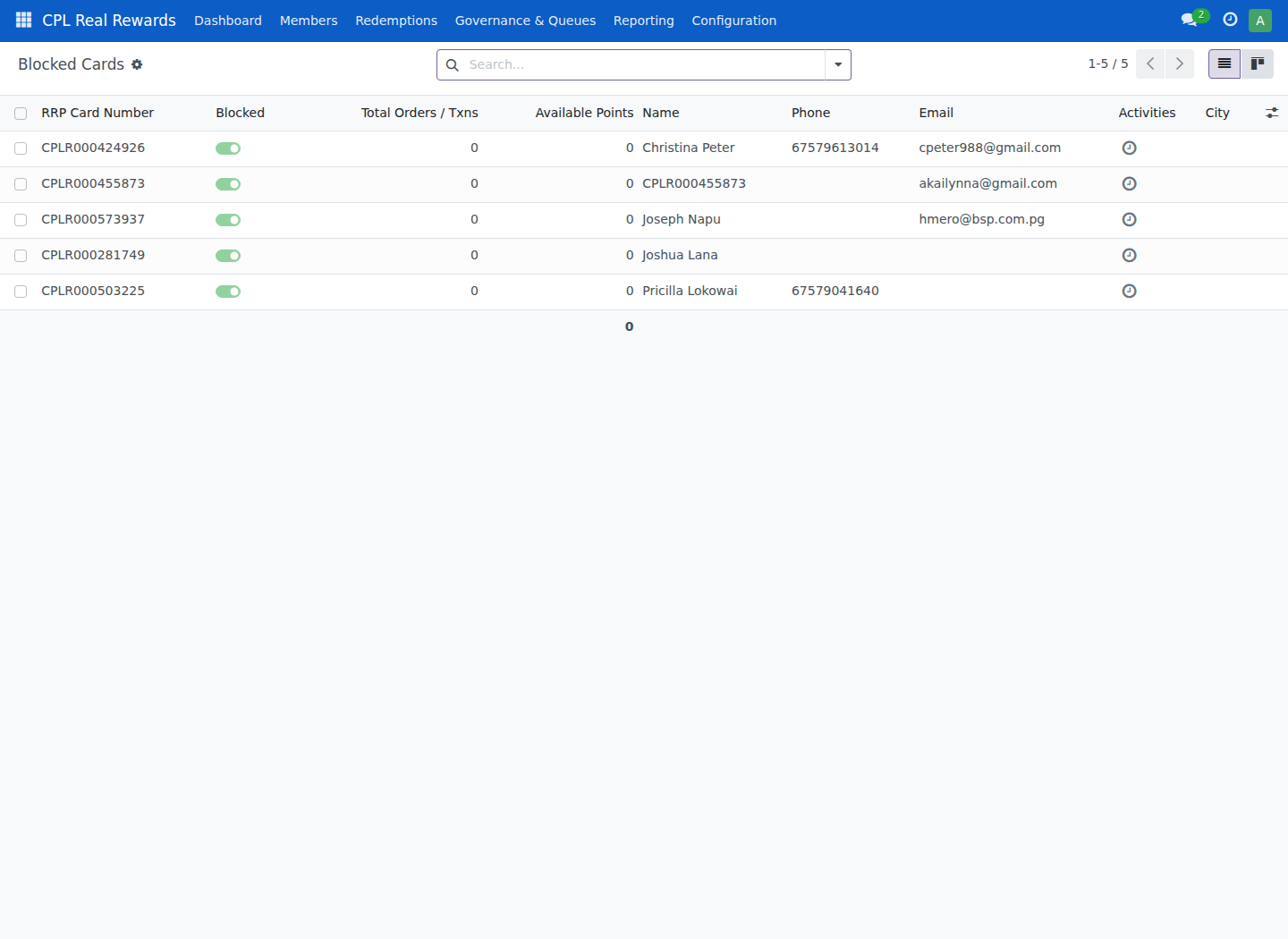 Figure 3: Blocked Cards list view showing all 5 suspended accounts with locked 0 points.
7. Card Replacement / Swap Procedure
When a member reports a lost, stolen, or physically damaged card:
- Navigate to Members > Member Add/Change Requests.
- Click New.
- Select the customer's active profile in Partner / Member.
- Set Request Type to
Card Replacement / Swap. - In Replacement Card Number, scan or enter the brand-new, unassigned card barcode (e.g.
CPLRUAT...). - In Reason / Justification, describe the physical condition or reason (e.g. "Physical barcode damage replaced at till desk").
- Click Submit for Approval.
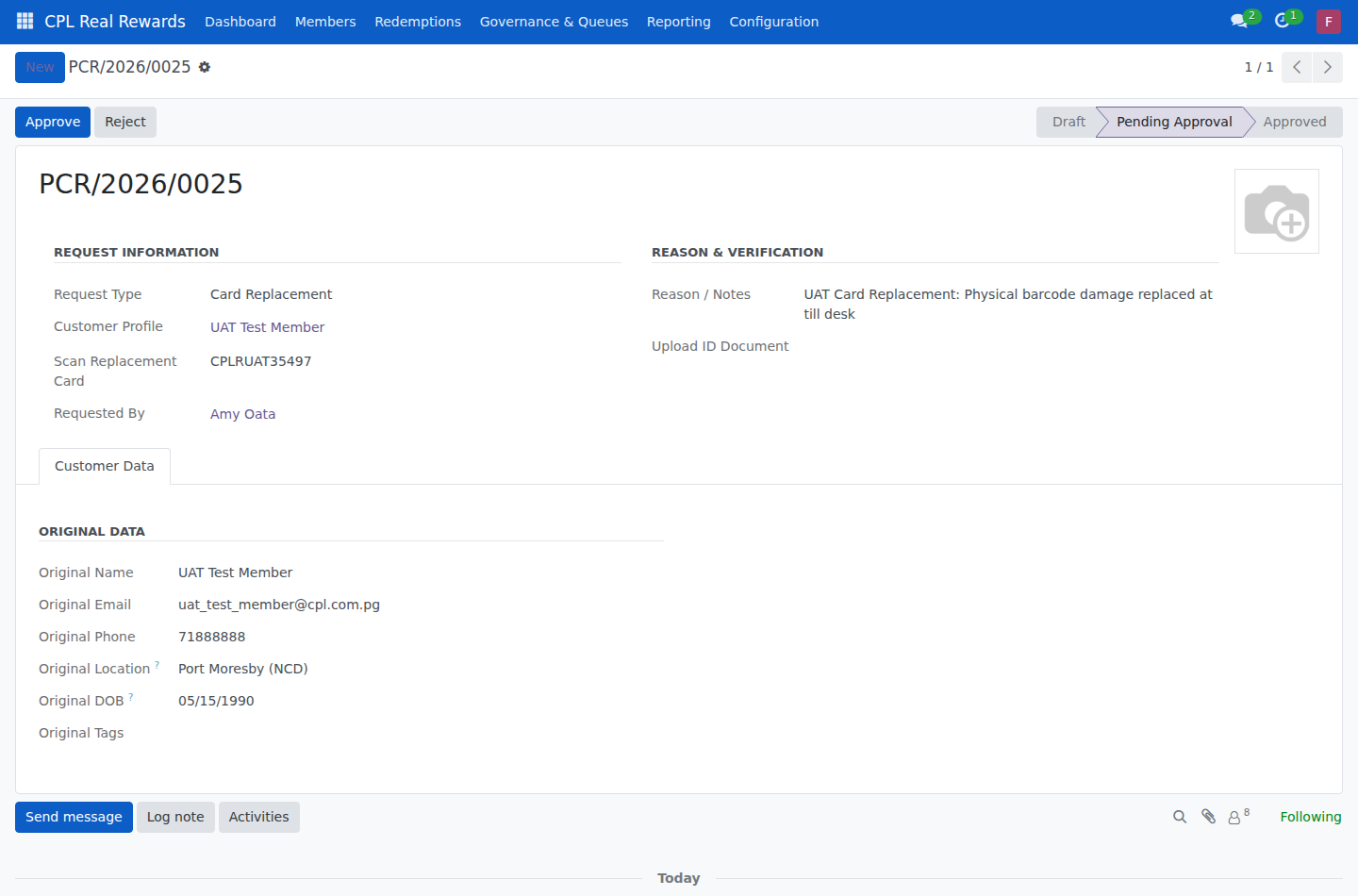 Figure 4: Maker submitting a Card Replacement request with new card barcode and justification.
8. Segregation of Duties Enforcement (Negative Test)
Branch Makers must understand that the Odoo 17 system strictly prohibits self-authorization:
- In the Maker user interface, the Approve button is completely hidden from view.
- Even if a user attempts to trigger approval via automated scripts or direct API calls, the Python ORM security guard blocks the action immediately:
"Segregation of Duties Violation: You cannot approve your own change request. An independent Checker must review and authorize it."
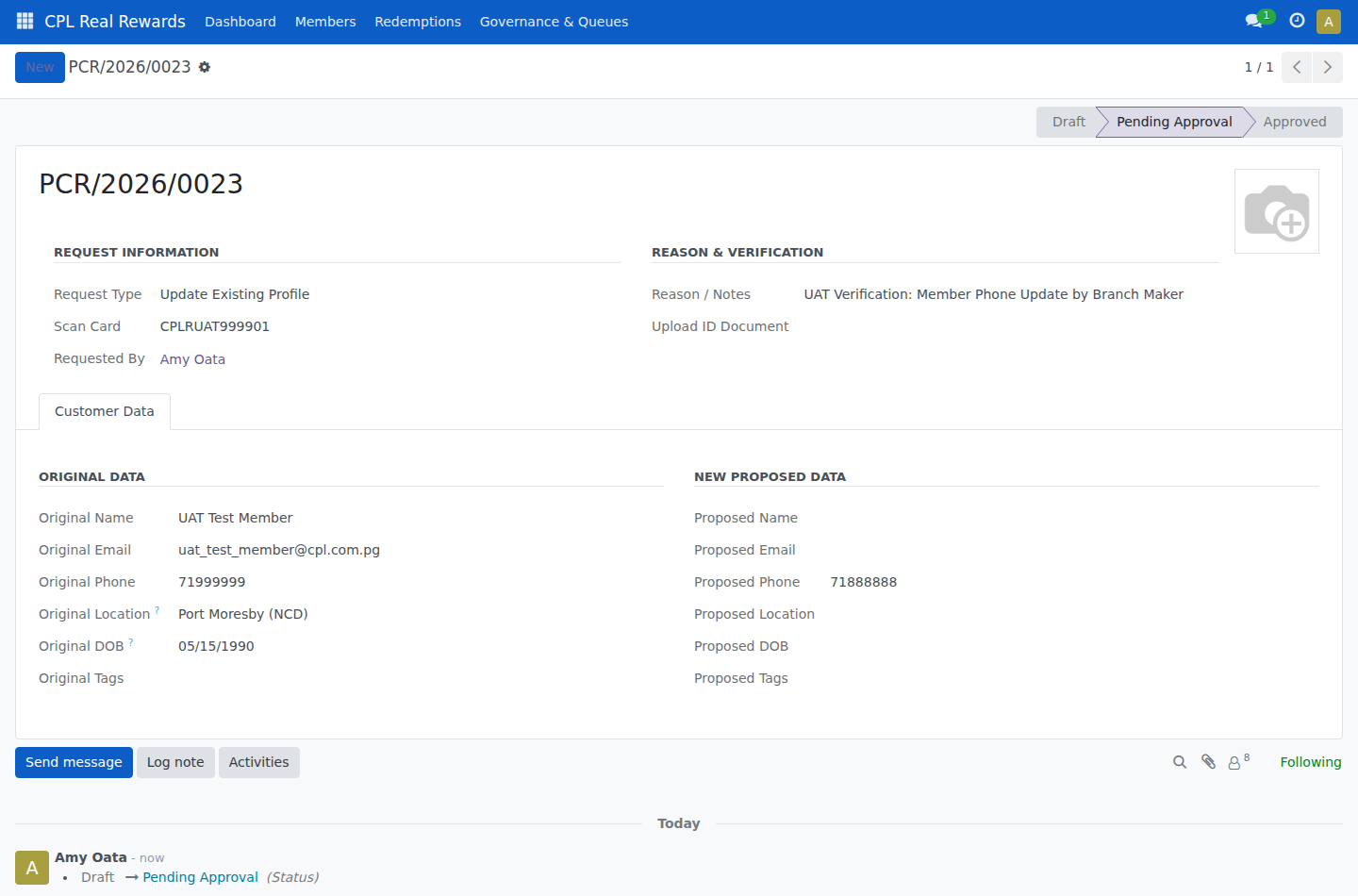 Figure 5: System guard blocking self-approval by Maker aoata@cpl.com.pg.
9. Quarantined Till Receipt Claim Submission
When an unassigned till scan needs to be claimed for an authenticated member:
- The Maker accesses the Quarantined Cards Queue and initiates the claim.
- The claim request logs in Member Add/Change Requests in
pendingstate, containing the unassigned card number, the member's target Golden Record, and the receipt proof.
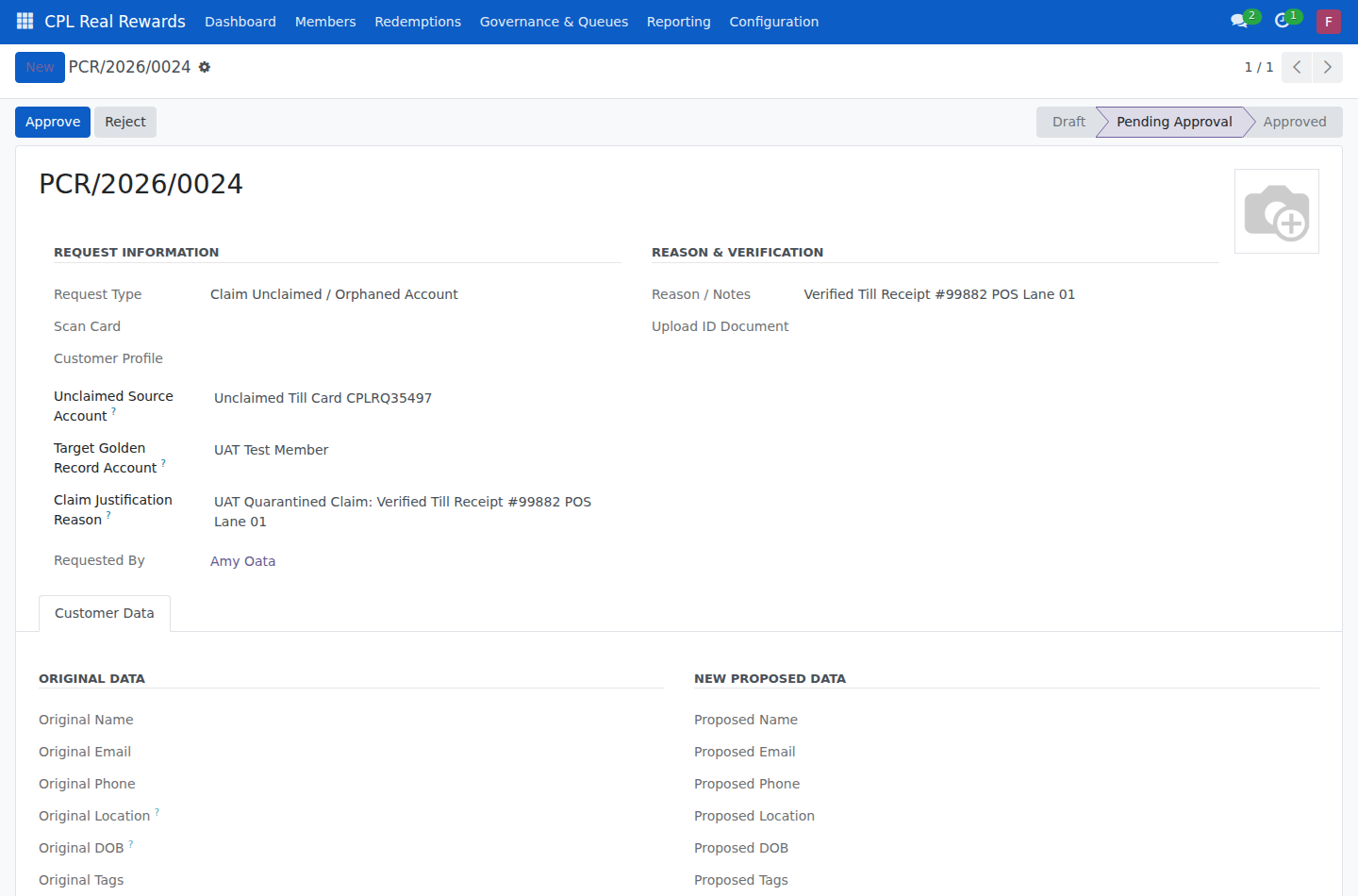 Figure 6: Quarantined Claim Request submitted by Maker awaiting independent Checker review.
10. In-Store Reward Redemptions (Store Staff Operating Procedure)
Store staff and Branch Makers can process customer reward redemptions live at retail service desks:
Prerequisites:
- The customer must present their physical or digital Real Rewards card.
- The customer's available loyalty points must meet or exceed the reward item points requirement.
- The user account must have an assigned Shop Location (e.g.
CP Waigani Central).
Step-by-Step Redemption Workflow:
- Access Store Redemptions:
- In the top navigation bar, click Redemptions > Store Redemptions.
- The list view displays all store redemption orders with live status badges (
Draft,Pending SO,Redeemed,Cancelled).
 Figure 7: Store Redemptions registry view in Odoo 17.
- Create New Redemption Order:
- Click New.
- Your assigned Shop Location is automatically pre-filled and locked to prevent cross-store attribution errors.
- Scan or enter the customer's Customer RRP Card Number (e.g.
CPLRUAT...or 9-digit barcode). -
Odoo automatically retrieves the customer profile, email, phone number, and current Available Points.
-
Select Reward Items:
- In the Reward Items notebook tab, click Add a line.
- Select the catalog product from the approved rewards list (93 active reward items available).
- Enter the Quantity (default:
1). The unit points and total points required are calculated automatically.
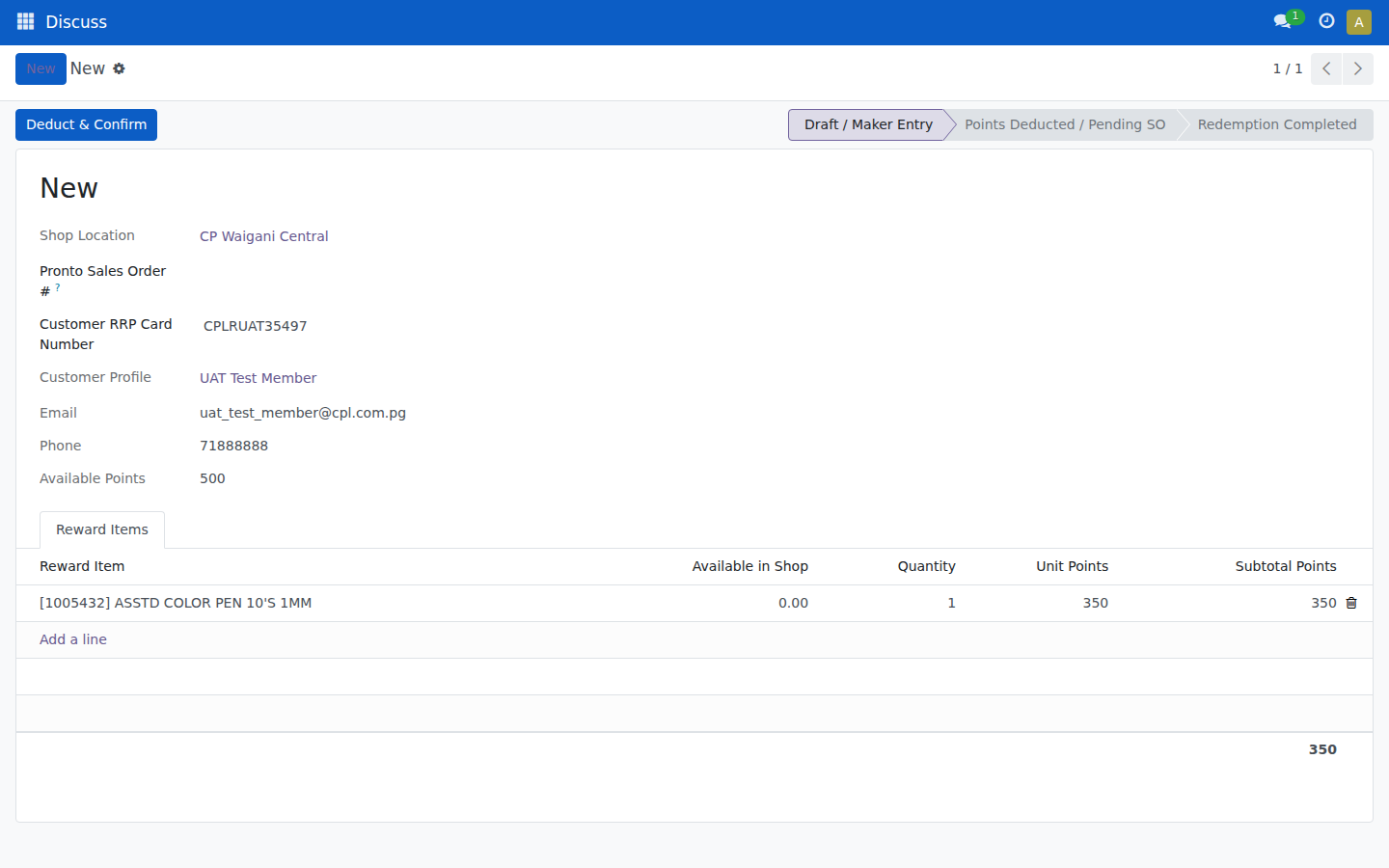 Figure 8: Draft redemption order with auto-populated member points and selected reward item.
- Deduct Points ('Deduct & Confirm'):
- Click the blue Deduct & Confirm button in the header.
- The system validates that
available_points >= total_points. - Points are immediately debited from the customer's live balance (
loyalty_points_available) and recorded in the audit ledger with your store's attribution. -
Order state transitions to
Points Deducted / Pending SO. -
Marry Pronto POS Sales Order & Complete:
- Ring up the redemption order on the Pronto POS till register at zero price (loyalty reward) to generate the physical receipt and relieve store inventory.
- Enter the Pronto Sales Order Number into Pronto Sales Order # (supports both legacy 9-digit numbers like
337965539and modern 10-digit till sequences like1065180689). - The system validates that the SO number is digits-only, within the authorized shop range (up to
9,999,999,999), and unique. - Click the green Complete button in the header.
- Order state transitions to
Redemption Completed(redeemed).
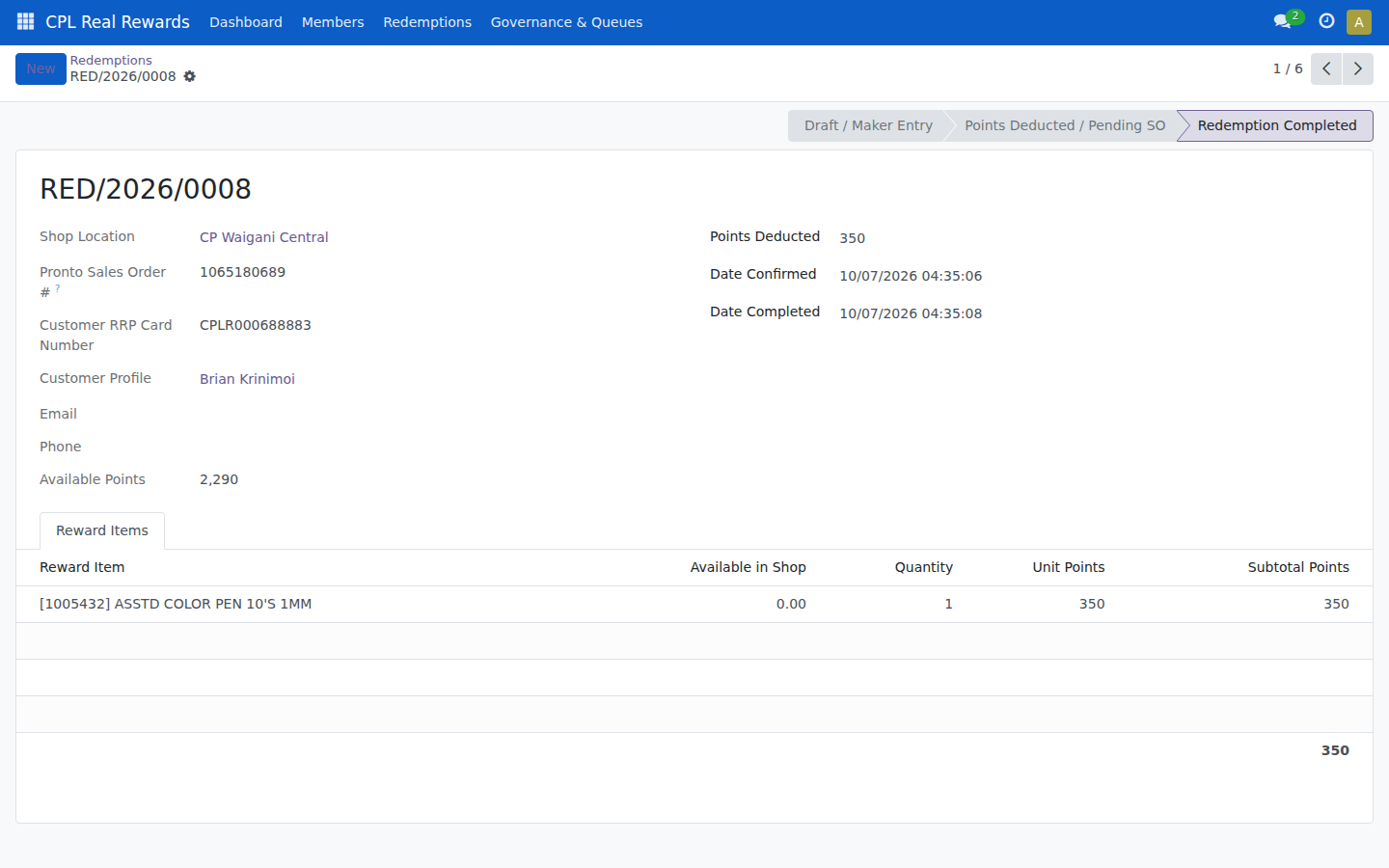 Figure 9: Completed redemption order married to 10-digit Pronto POS Sales Order (1065180689) at CP North Waigani.
- Loyalty Ledger & Customer Balance Verification:
- The member's loyalty ledger permanently records the negative points deduction with retail shop attribution (
CP North Waigani), ensuring complete traceability between Pronto POS and Odoo.
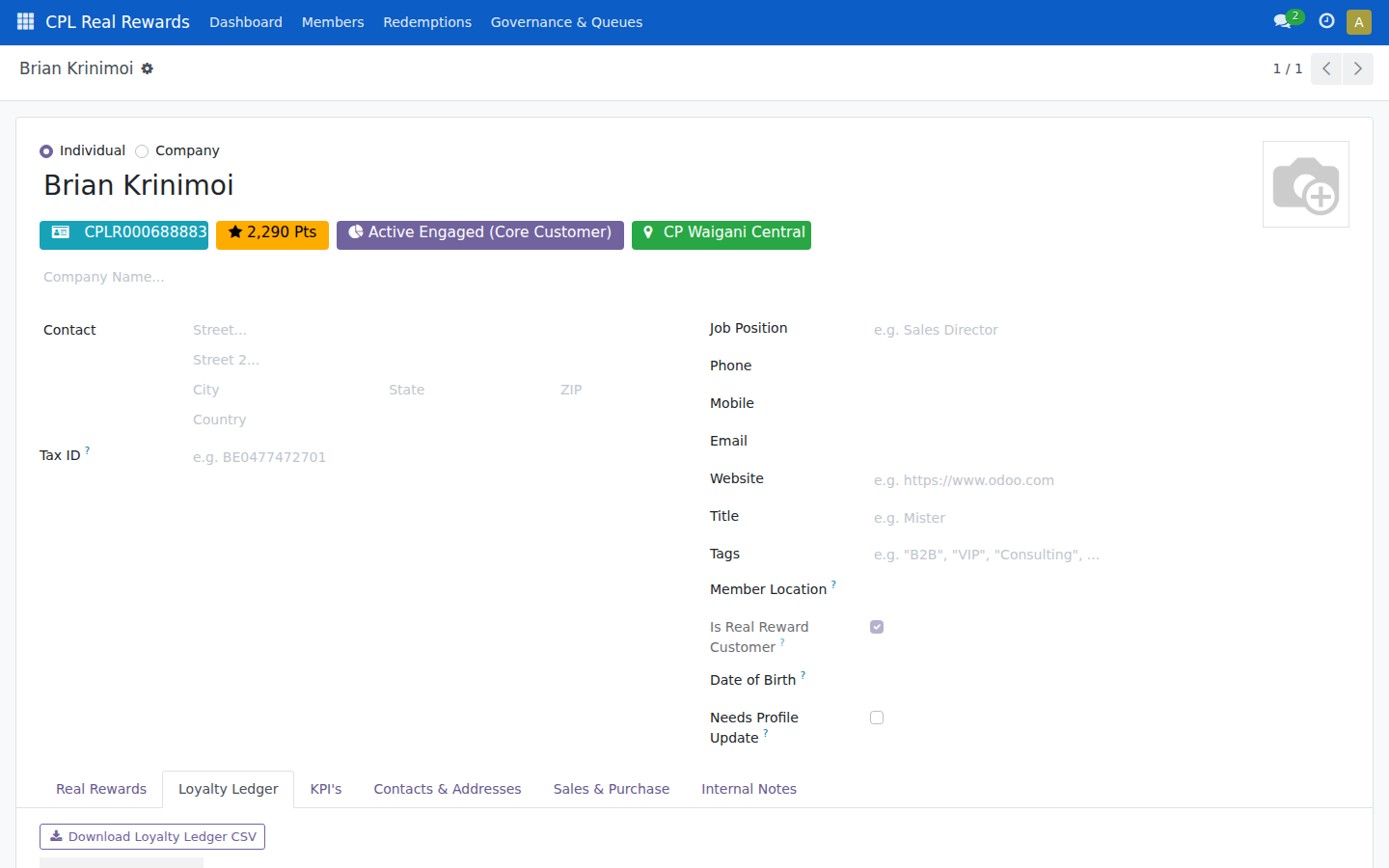 Figure 10: Member profile loyalty ledger displaying real-time points debit and shop attribution.
- Handling Customer Returns & Operational Keying Mistakes:
- Operational Rule: Never attempt to delete or alter an order. Completed redemptions represent physical till activity and inventory movements that must remain auditable.
- Procedure when a Customer Returns an Item or an Erroneous Item is Selected (e.g. Lotion instead of Toothpaste):
- Notify your Store Manager or Head Office Administrator with Admin privileges (
group_real_rewards_admin). - The Administrator navigates to Redemptions > Store Redemptions, opens the completed order, and inputs the detailed explanation in Cancellation Reason (e.g., "Customer returned item in original condition at CP North Waigani — Manager approved points refund").
- The Administrator clicks Cancel / Return & Refund and confirms the confirmation dialog.
- The system updates the order status to
Cancelled & Refunded, appends-REFUNDEDto the Pronto SO number (e.g.,1065180695-REFUNDED), and posts an immediate compensatory+Pointsearn credit to the customer's loyalty ledger. - Refunded points bypass the standard 7-day earn clearance window, meaning the member's available balance is instantly restored.
- The cashier can now immediately create a fresh redemption order for the correct item (e.g. Toothpaste) using the member's restored balance.
- Notify your Store Manager or Head Office Administrator with Admin privileges (
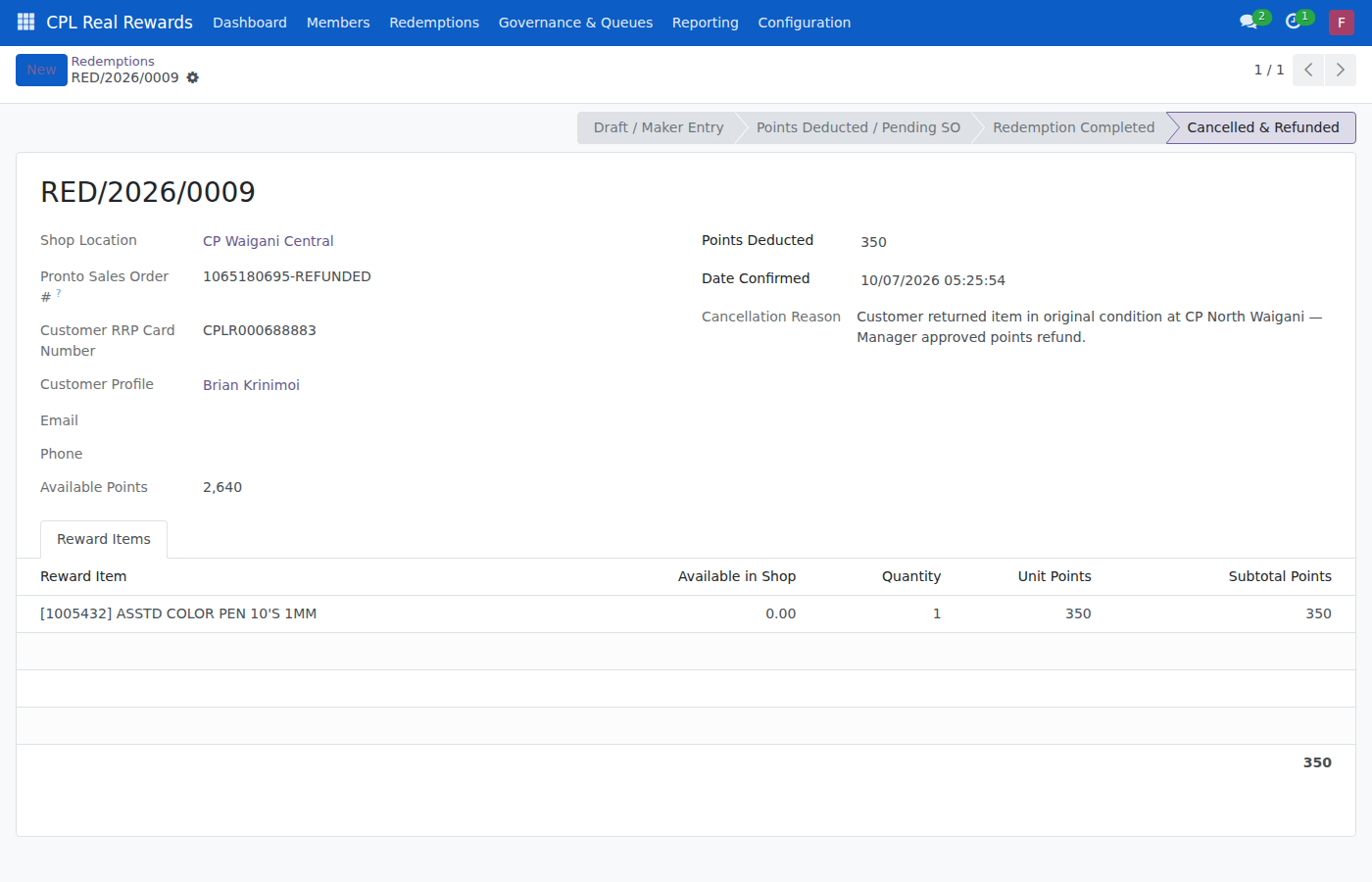 Figure 11: Order transitioned to Cancelled & Refunded with -REFUNDED Pronto SO decoupling and restored customer balance.
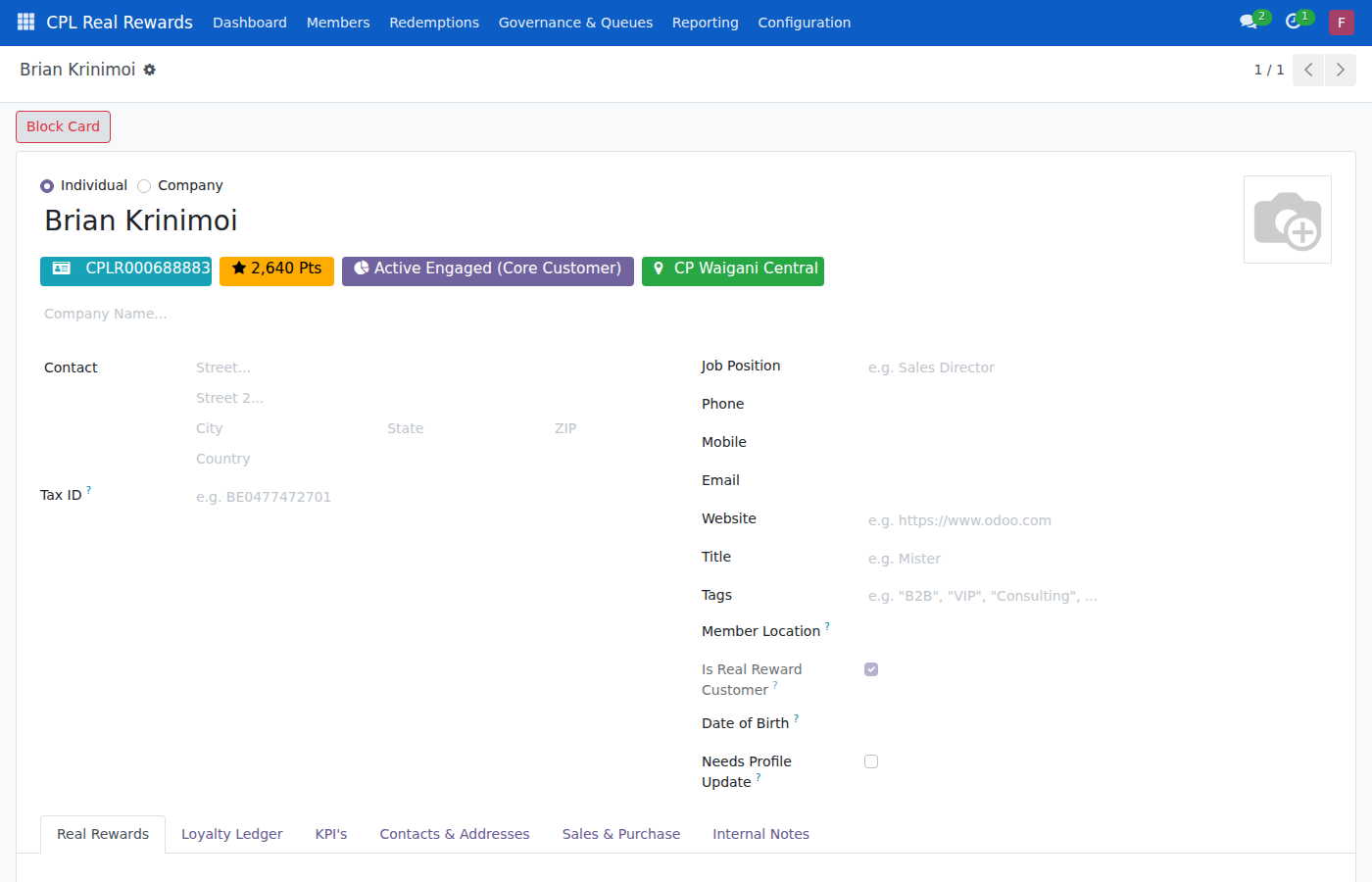 Figure 12: Customer profile showing available loyalty balance fully restored to 2,640 Pts immediately upon return.
11. Real-Time Communication & Daily Issue Flagging Protocol
Store Makers and Cashiers operate on the front line of retail customer service, overseen by Store Supervisors. When encountering unusual member inquiries, missing points, or system friction, follow this communication protocol:
11.1 Store Supervisors as Frontline Quality Gate
- Supervisory Verification: Store Supervisors review physical registration forms, ID cards, and till receipts presented by customers before cashiers submit requests to Head Office Checkers.
- Escalation Point: Cashiers first escalate counter queries and customer edge cases to their on-duty Store Supervisor.
11.2 Flag Issues Daily As They Occur (Zero Friday Backlogs)
- Operational Directive: Do NOT wait until the end of the week to compile an email list.
- Encountering an error, duplicate account, or confused customer should be flagged daily on the day it occurs.
- Daily reporting enables Head Office Checkers to triage member issues immediately, and escalate technical defects to the Systems Developer for same-day patching under the gatekeeper pipeline.
11.3 Record-Level Chatter @Mentions (For Specific Member Requests)
- When you need clarification on a specific Member Service Request (e.g.
PCR/2026/0043): - Open the request in Odoo.
- Scroll down to the Chatter section at the bottom of the form.
- Click Send message.
- Type
@Store Supervisoror@Head Office Checkerfollowed by your question (e.g., "Customer provided temporary driver license; please confirm if acceptable for name change."). - Click Send.
- Audit Advantage: The conversation remains permanently attached to the member's profile for internal audit compliance.
11.4 Odoo Discuss Real-Time Messaging (Direct Collaboration)
- For quick questions that do not relate to an individual customer form:
- Click the Conversations / Chat icon (speech bubbles) in the top-right navigation bar.
- Click New Message.
- Message the designated Head Office Checker for operational questions, or the Systems Developer for technical bug escalations.
- Send your message directly inside Odoo without leaving your workstation.
- Under
STG-TICK-042, the Discuss search engine is fully optimized, allowing rapid instant messaging across all active CPL retail colleagues.