ERP Staff User Guide: Pronto POS Daily Transaction Bulk Ingestion
Target Audience: ERP Operations Team (Shadrach Sebas, Athan Kopar), Technology Management, Head Office Checkers.
System Access Required: Loyalty Checker (Moderator) or Real Rewards Admin
Live Production URL: https://rewards.cpl.com.pg
Staging Testing URL: https://angry-mad-smile.cpl.com.pg
1. Overview & Operational Responsibilities
The CPL Real Rewards Platform ingests daily retail point-of-sale checkout feeds generated by Pronto ERP across all retail brands (City Pharmacy, Stop & Shop, Hardware Haus, and Duty-Free).
As ERP Operations staff, your key operational responsibilities include: 1. Uploading the daily POS transaction CSV files (or consolidated ZIP archives) via the web interface. 2. Initiating the asynchronous background import workflow. 3. Auditing the Import History Logs to verify that orders are created and duplicates are properly skipped. 4. Ensuring that member loyalty balances reflect accurate 1-to-1 PGK-to-point accruals.
[!IMPORTANT]
Asynchronous Background Processing
Ingestion executes in a dedicated background Python thread. Once you click Import POS Transactions, Odoo captures a unique Process ID (
PID <pid> / IMP-xxxxx), displays a confirmation toast notification, and closes the wizard.You do NOT need to wait on the screen. You can safely navigate to other modules, process other tasks, or close your browser tab. The server will continue processing in the background and dispatch a completion summary email when finished.
2. Ingestion Workflow: Step-by-Step
flowchart TD
    A["1. Prepare Daily POS Feed (CSV or ZIP)"] --> B["2. Open CPL Real Rewards > Configuration > Bulk Upload (Zinrelo)"]
    B --> C["3. Confirm Import Mode: 'POS Daily Transactions'"]
    C --> D["4. Upload File(s) and Click 'Import POS Transactions'"]
    D --> E["5. Note Process ID (PID / IMP-xxxxx) from Toast Popup"]
    E --> F["6. Monitor Progress in Configuration > Import History Logs"]
    F --> G{"Audit Batch Status"}
    G -->|Success (Green)| H["Orders Ingested & Points Credited"]
    G -->|Partial / Warning| I["Inspect Detailed Breakdown Table for Line Errors"]
Step 1: Access the Bulk Upload Wizard
- Log in to Odoo using your Microsoft Entra ID (Azure SSO) credentials:
- Production:
https://rewards.cpl.com.pg - Staging:
https://angry-mad-smile.cpl.com.pg - Open the main application switcher (top-left 9-dots icon) and select CPL Real Rewards.
- In the top navigation bar, click Configuration → Bulk Upload (Zinrelo).
Step 2: Upload Files & Set Import Parameters
- Import Mode: Ensure the selection is set to
POS Daily Transactions(default). - Attach Files:
- Click Upload File to select a single
.csvor.zipfile, or select multiple files in the file selector. - Supported File Types: Plain
.csv, compressed.zip(containing one or more daily CSV files). - File Size Limit: Up to 50 MB per file.
- Multi-File Processing: If you upload a
.ziparchive containing 30 daily files, Odoo extracts and processes each file sequentially within the same batch.
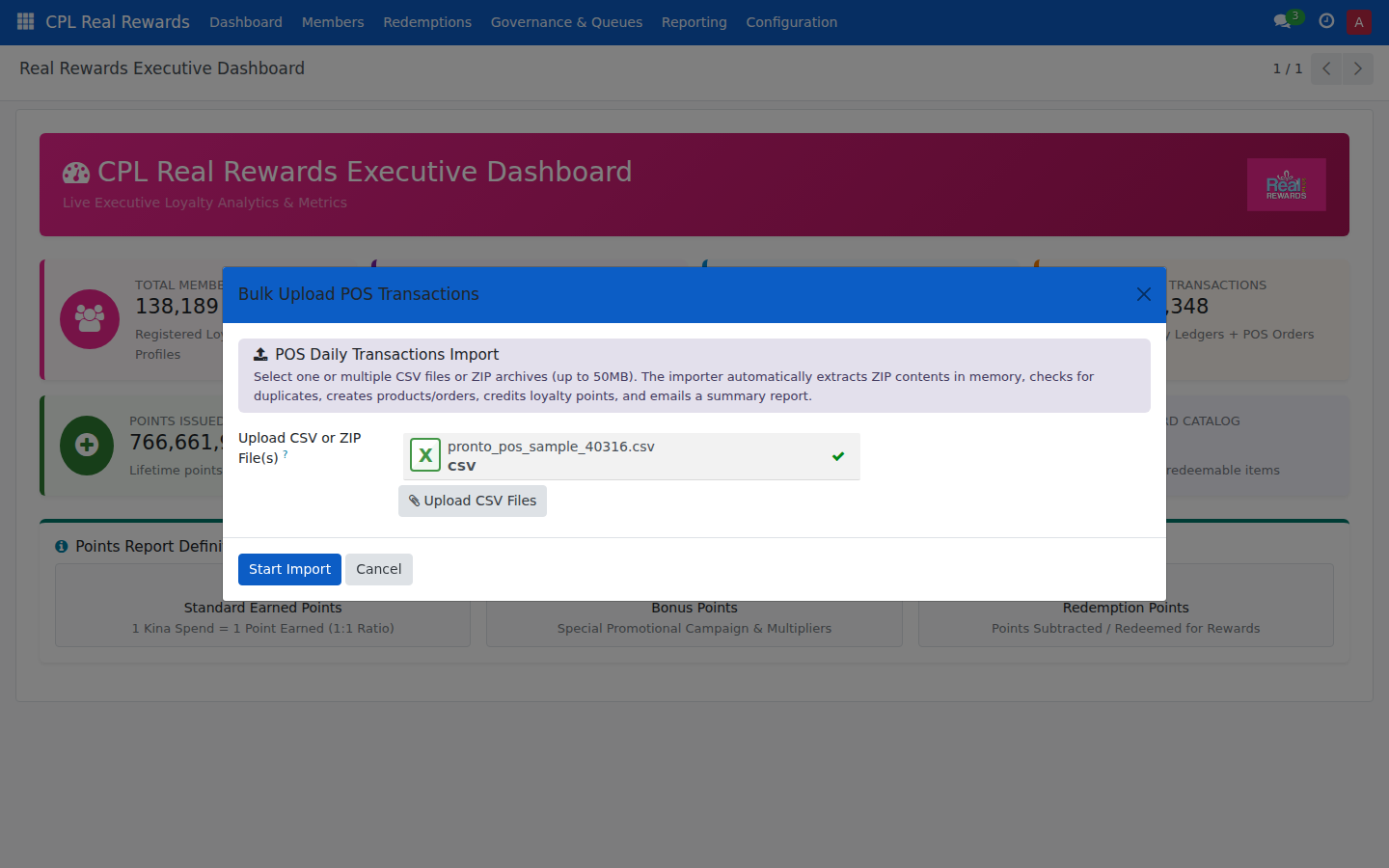
Step 3: Launch Background Processing
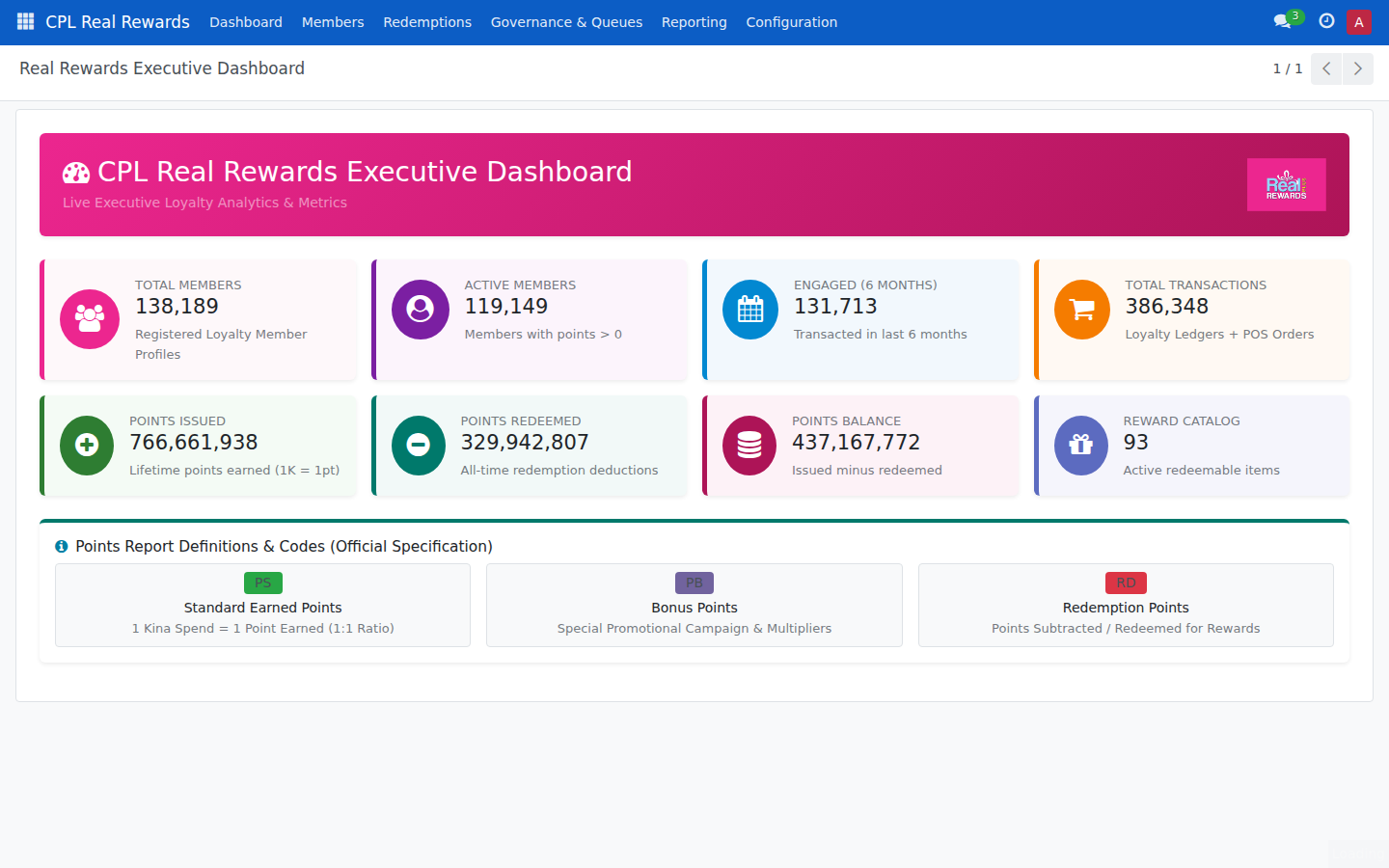
- Click the primary action button:
Import POS Transactions. - An instant toast notification appears in the top-right corner:
Stage 1/3: Background Import Started [PID 12345 / IMP-00042] Process ID: PID 12345 / IMP-00042 (Ubuntu PID: 12345) | Processing files in background thread. The wizard has closed.
- The modal closes automatically. An automated startup notification email is sent to the ERP and Admin team.
3. Strict Mathematical Idempotency Guarantee
In retail environments, network retries and overlapping date ranges can cause identical files to be submitted multiple times.
The CPL Real Rewards Importer is built with strict three-tier idempotency:
1. Tier 1 (In-Memory Pre-Flight Filter): Checks incoming order numbers (pos_reference) against existing database records. Existing orders are skipped in microseconds without database row locks.
2. Tier 2 (PostgreSQL Unique Constraint): CONSTRAINT unique_pos_order_reference UNIQUE (pos_reference, company_id) prevents any duplicate database rows.
3. Tier 3 (Loyalty Ledger Deduplication): Each loyalty transaction is recorded with deterministic key POS/<store>/<order>/<line>. If already present, points are not credited a second time.
[!NOTE] Idempotency Guarantee: Re-importing a CSV file 1 time or 100 times produces the exact same loyalty points balance and order count. Duplicate rows are logged as Skipped (Duplicates).
4. Where to Check and Audit Results
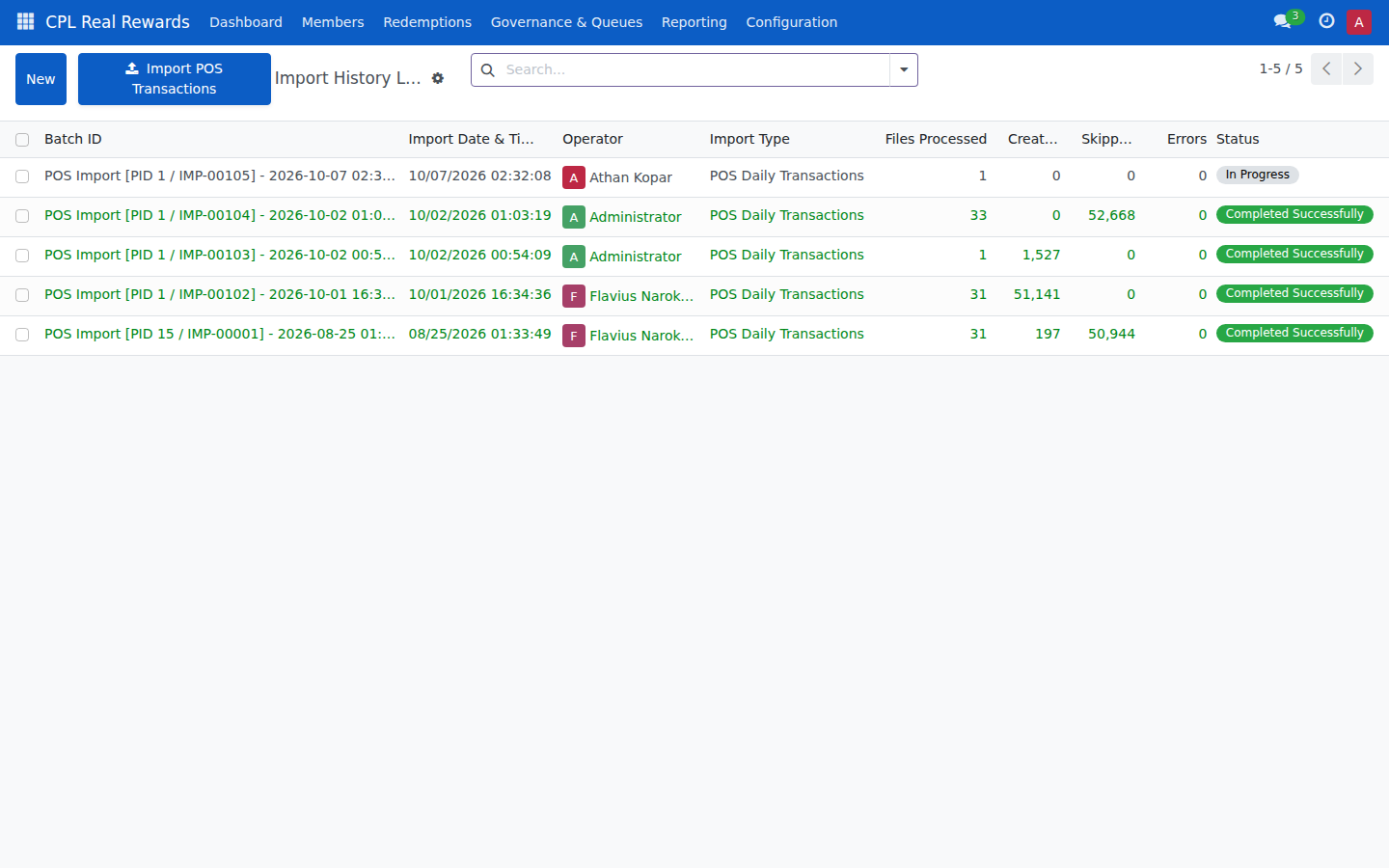
A. Import History Logs
Navigate to: Configuration → Import History Logs (real.rewards.import.log).
This interactive audit dashboard provides:
- Batch Reference: Unique audit identifier (e.g. POS Import [PID 12345 / IMP-00042]).
- Import Date & Operator: Timestamp and user name of who initiated the batch.
- Created: Number of brand-new POS orders created and points credited.
- Skipped (Duplicates): Number of previously ingested transactions skipped safely.
- Errors: Count of malformed lines or unparseable records (if any).
- Status Badge:
- Success: All transactions processed cleanly.
- Partial: Some orders created, but some lines had formatting errors.
- Failed: File could not be read (e.g. invalid encoding or missing headers).
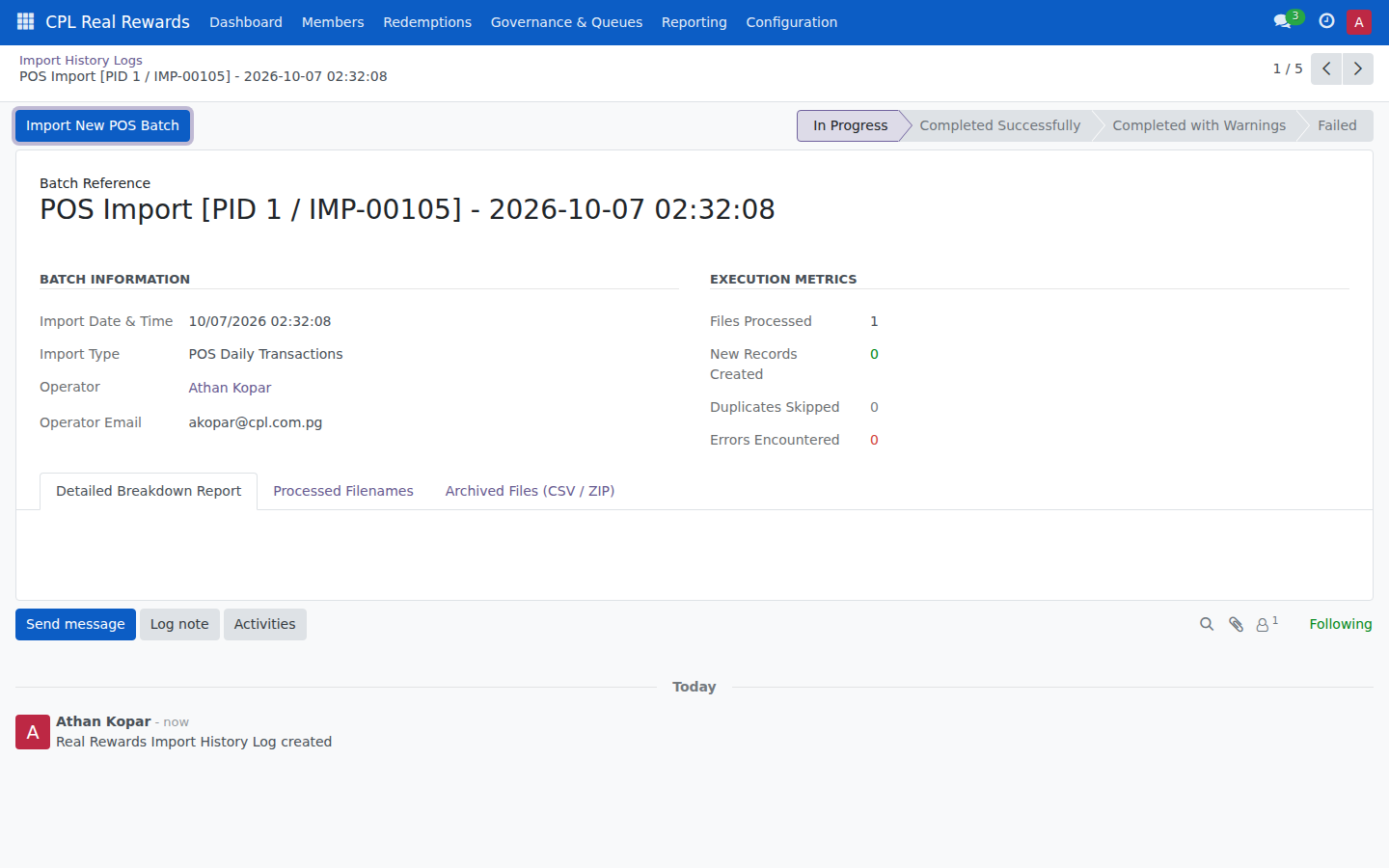
Clicking into any batch opens the Detailed Breakdown Report displaying a per-file table with exact row counts.
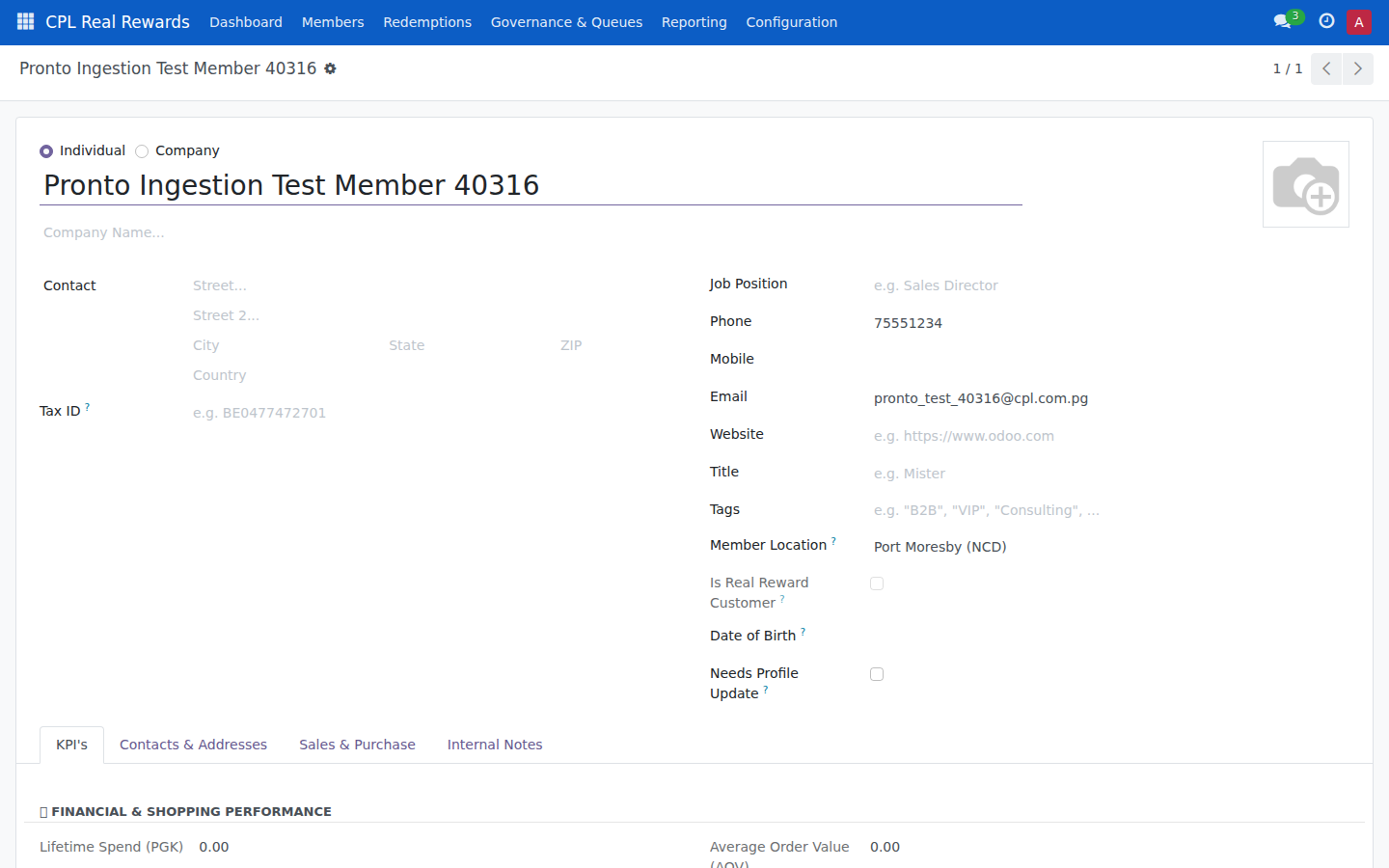
B. Member Loyalty Ledger
To confirm points accrual on an individual member:
1. Go to Members → Customers / Members.
2. Search for the customer by phone number, card number, or name.
3. Open the Loyalty Ledger tab on the member form:
- Each transaction appears with Transaction Type: POS Accrual.
- Reference source: POS/<store_code>/<order_id>/<line>.
- Points amount: Exact 1-to-1 PGK spend value.
C. Automated Completion Email
Upon finishing the background batch, Odoo automatically sends an HTML completion email to:
- Operator email (Shadrick / Athan)
- Technology Administrators (fnarokobi@cpl.com.pg)
- Primary Loyalty Checker (mfrank@cpl.com.pg)
The email includes the total runtime, files processed, created orders, skipped duplicates, and total points credited.
5. CSV File Format & Column Specifications
Pronto POS export files should be comma-delimited (.csv) with the following standard columns:
| Column Header | Required | Example | Description |
|---|---|---|---|
store_code / location |
Yes | CP01 / 101 |
CPL physical retail store code |
order_id / docket_no |
Yes | DOC-984712 |
Unique POS docket or transaction ID |
order_date / date |
Yes | 2026-10-06 14:32:00 |
Transaction timestamp |
card_number / member_id |
Yes | CPL008912 |
Member Real Rewards card number |
price_subtotal / amount |
Yes | 45.50 |
Total spend eligible for 1:1 points accrual |
item_code / product_sku |
Optional | MED-10023 |
Product SKU or description |
(Header matching is case-insensitive and supports standard Pronto alias variations).
6. Support & Escalations
For file format exceptions, missing store codes, or system escalations:
- ERP Operations Lead: Athan Kopar (akopar@cpl.com.pg)
- ERP Administrator: Shadrach Sebas (ssebas@cpl.com.pg)
- Real Rewards Operations Checker: Margaret Valo Frank (mfrank@cpl.com.pg)
- Systems Developer (Technical Escalations): Systems Developer (fnarokobi@cpl.com.pg)